There's nothing more frustrating than staring at a spinning wheel or an hourglass cursor when you're trying to get things done. A slow computer doesn't just waste your time — it drains your patience and kills your productivity. According to a 2023 study by Sanyo, the average worker loses approximately 46 minutes per day waiting on slow technology, which adds up to nearly two full weeks per year. The good news? You don't need to be a tech wizard or spend hours troubleshooting to get your machine running faster. With the right approach, you can dramatically improve your computer's performance in just 10 minutes. Let's dive into the most effective quick fixes you can start using right now.
Close Unnecessary Startup Programs
One of the biggest reasons your computer feels sluggish — especially right after booting up — is that dozens of programs are launching automatically in the background. Many applications sneak themselves into your startup list during installation, and over time, they pile up and compete for your system's limited resources.
Here's how to fix it:
On Windows:
- Press Ctrl + Shift + Esc to open Task Manager.
- Click the Startup tab.
- Review the list and right-click any program you don't need at startup, then select Disable.
On Mac:
- Go to System Settings > General > Login Items.
- Remove any apps you don't need launching at boot by clicking the minus (-) button.
Common culprits include Spotify, Discord, Skype, OneDrive syncing tools, and various manufacturer bloatware. Disabling these won't delete them — they simply won't run until you open them yourself. This single step can shave 30 seconds to several minutes off your boot time.
Free Up Disk Space
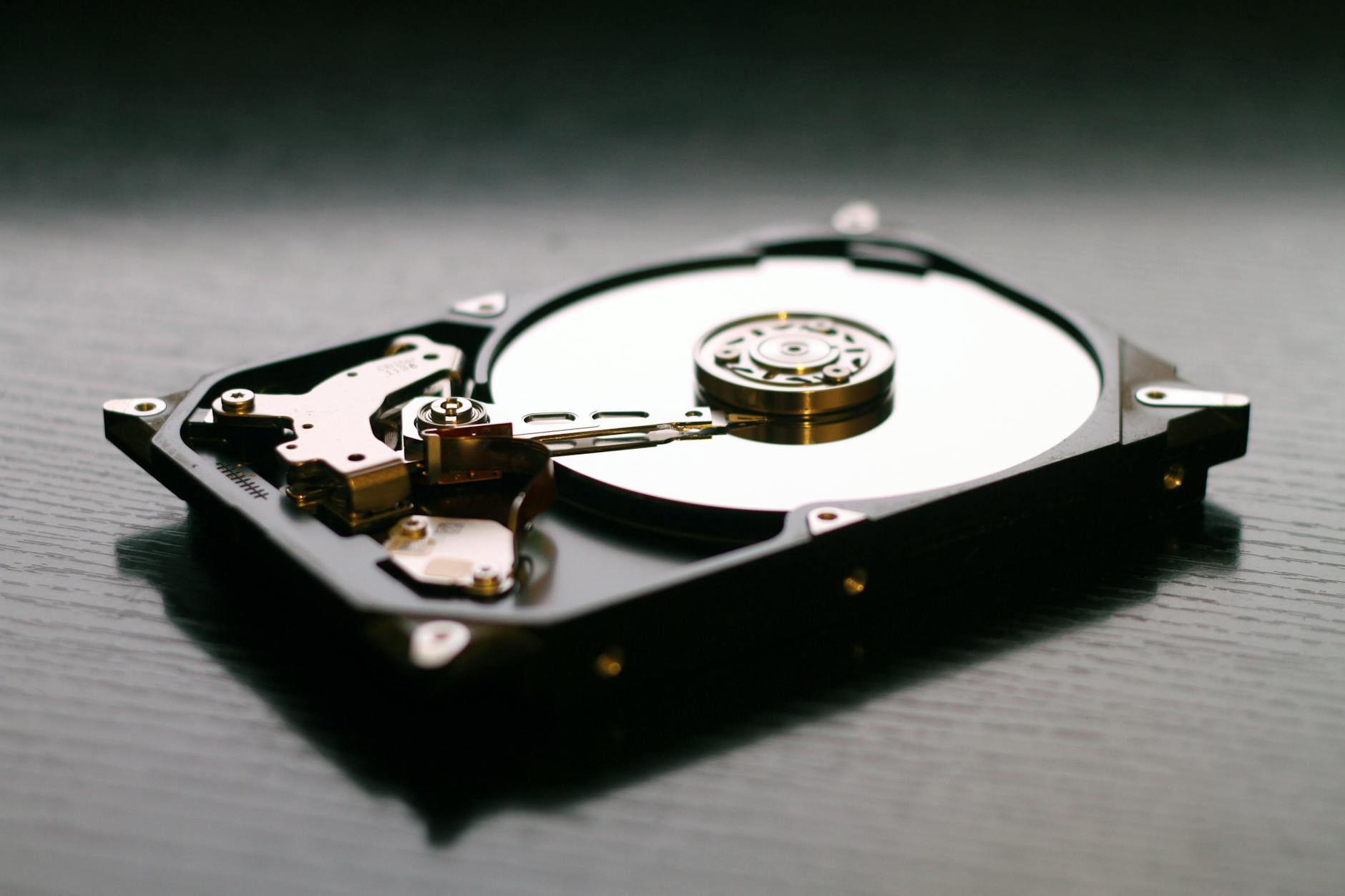
When your hard drive or SSD is nearly full, your computer struggles to perform basic operations. Your operating system needs free space for temporary files, virtual memory, and system updates. As a general rule, you should aim to keep at least 15-20% of your primary drive free at all times.
Quick ways to reclaim space:
- Empty your Recycle Bin or Trash — files sitting here still take up space.
- Delete old downloads — your Downloads folder is probably a graveyard of forgotten installers and PDFs.
- Use built-in cleanup tools — on Windows, search for Disk Cleanup and run it on your C: drive. On Mac, click the Apple menu > About This Mac > Storage > Manage to find recommendations.
- Uninstall apps you no longer use — that video editor you tried once six months ago? It's taking up gigabytes for no reason.
You'd be surprised how much space you can recover in just a few minutes of focused cleanup.
Read also
The Best Free Productivity AppsCheck for Resource-Hogging Processes
Sometimes a single rogue application or background process is consuming an outsized share of your CPU or memory, dragging everything else down with it.
How to Identify the Culprit
- Windows: Open Task Manager (Ctrl + Shift + Esc) and click the Processes tab. Sort by CPU or Memory usage to see what's eating up your resources.
- Mac: Open Activity Monitor from your Applications > Utilities folder and check the CPU and Memory tabs.
If you see a browser with 4 GB of RAM usage, it's probably time to close some of those 47 open tabs. If an unfamiliar process is consuming significant resources, do a quick web search for its name to determine whether it's safe to end or if it might be malware.
Restart Your Computer (Seriously)
It sounds almost too simple, but restarting your computer is one of the most effective performance fixes available. Many people put their computers to sleep or hibernate rather than fully shutting down, which means temporary files, memory leaks, and background processes accumulate over days or even weeks.

A fresh restart:
- Clears your system's RAM
- Closes all running processes and services
- Allows pending updates to install
- Resets temporary file caches
If you can't remember the last time you restarted your machine, do it now. It takes two minutes and often produces an immediate, noticeable improvement.
Update Your Operating System and Drivers
Running outdated software is a common — and frequently overlooked — cause of poor performance. OS updates include performance optimizations, bug fixes, and security patches that keep everything running smoothly.
- Windows: Go to Settings > Windows Update and click Check for updates.
- Mac: Go to System Settings > General > Software Update.
Don't forget about driver updates, especially your graphics card drivers. Outdated GPU drivers can cause lag, visual glitches, and sluggish overall performance. NVIDIA, AMD, and Intel all offer free tools that automatically detect and install the latest drivers for your hardware.
A Word on Browser Updates
Since most of us spend the majority of our computer time in a web browser, keeping Chrome, Firefox, Edge, or Safari up to date is equally important. Browser updates frequently include significant speed and memory improvements that make everyday browsing feel snappier.
Adjust Your Visual Effects and Power Settings
Modern operating systems come with slick animations, transparency effects, and visual flourishes that look beautiful but consume processing power. If your computer is struggling, dialing these back can provide an instant performance boost.

On Windows:
- Search for "Adjust the appearance and performance of Windows" in the Start menu.
- Select "Adjust for best performance" or manually uncheck effects you don't need, like window animations and shadow effects.
On Mac:
- Go to System Settings > Accessibility > Display.
- Enable Reduce Motion and Reduce Transparency.
Additionally, make sure your power settings aren't throttling performance. On laptops, switching from a "Battery Saver" or "Power Saver" plan to a "Balanced" or "High Performance" plan can make a significant difference, especially when you're plugged in.
Run a Quick Malware Scan
If your computer suddenly became slow without an obvious explanation, malware could be the cause. Viruses, adware, and cryptominers can silently consume your system resources in the background while you wonder why everything is crawling.
Run a quick scan using:
- Windows Defender (built into Windows — search "Windows Security" and run a Quick Scan)
- Malwarebytes (free version available for both Windows and Mac)
A quick scan typically takes just 3-5 minutes and can identify threats that are actively degrading your performance. If anything is found, follow the tool's recommendations to quarantine or remove it immediately.
Manage Your Browser Extensions and Tabs
Your web browser might be the single biggest resource consumer on your computer. Each open tab uses memory, and each extension runs its own background processes. If you're the type of person who keeps 30+ tabs open at all times, your browser alone could be using several gigabytes of RAM.

Practical steps to lighten the load:
- Close tabs you're not actively using — bookmark them if you need them later.
- Remove browser extensions you don't use — go to your browser's extension settings and audit what's installed.
- Use a tab management extension like OneTab or The Great Suspender to automatically suspend inactive tabs.
- Consider switching browsers — if Chrome is too heavy for your system, Firefox or Edge may perform better with fewer resources.
Make It a Monthly Ten-Minute Habit
You don't need to spend money on new hardware or hire a technician to breathe new life into a slow computer. By tackling startup programs, freeing up disk space, managing resource-hungry processes, and keeping your software updated, you can achieve a noticeably faster machine in 10 minutes or less. The key is making these small optimizations part of your regular routine — a quick monthly checkup can prevent slowdowns from creeping back in. Your computer was fast once, and with a little attention, it can feel that way again.