Sluggish Wi-Fi has become one of the most universal modern frustrations. Before calling your ISP to complain — or paying more for a faster plan — it's worth knowing that the bottleneck is almost always inside your home, not between your ISP and your house. Most people are paying for speeds they're getting at the modem, but losing a large portion by the time the signal reaches their devices.
Here's how to systematically diagnose and fix slow home Wi-Fi.
Step 1: Test Your Actual Speeds
Before changing anything, establish a baseline. Go to Fast.com or Speedtest.net:
Read also
The Best Free Productivity Apps- Test connected directly via ethernet cable to your router — this tells you what speed your ISP is actually delivering
- Test on Wi-Fi in the same room as the router
- Test in the problem locations where speeds are slow
If the ethernet speed matches your plan speed, your ISP is delivering. The issue is Wi-Fi. If even the ethernet speed is slow, contact your ISP.
Step 2: Router Placement Matters Enormously
Wi-Fi signal radiates outward in all directions. The single most impactful change most people can make is moving their router.
Ideal placement:
- Central location in your home — not in a corner or at one end
- Elevated — on a shelf or table, not on the floor (signal spreads more horizontally)
- Open space — not inside a cabinet, closet, or behind a TV
- Away from concrete and brick walls (these absorb signal significantly)
- Away from microwaves and cordless phones (2.4 GHz interference)
Moving a router from a corner of your home to the center can dramatically improve coverage throughout.
Step 3: Use the Right Frequency Band
Modern routers broadcast on two or three frequencies:
2.4 GHz:
- Longer range, better wall penetration
- Slower maximum speed
- More crowded (all neighbors' routers and smart devices compete)
5 GHz:
- Shorter range
- Much faster speeds
- Less congested
6 GHz (Wi-Fi 6E only):
- Very short range
- Extremely fast, almost no congestion
For devices close to the router (same room or next room): connect to 5 GHz or 6 GHz for faster speeds. For devices far from the router: 2.4 GHz provides more reliable coverage.
Most modern routers have a "band steering" feature that automatically connects devices to the best band — make sure it's enabled in router settings.
Step 4: Reduce Interference
Change your Wi-Fi channel. On the 2.4 GHz band, channels 1, 6, and 11 are non-overlapping — use one of these. If your neighbor is on channel 6, try channel 1 or 11. Most routers have an "auto" channel selection, but manually selecting a less congested channel often helps.

Tools like WiFi Analyzer (Android) or Apple's Wireless Diagnostics show which channels nearby networks are using.
Move interfering devices. Microwaves, baby monitors, and some cordless phones operate at 2.4 GHz and can interfere. Keep your router away from them.
Step 5: Update Router Firmware
Router manufacturers regularly release firmware updates that improve performance, fix security vulnerabilities, and optimize connection handling. Most routers have an update option in their admin interface (usually accessed at 192.168.1.1 or 192.168.0.1 from a browser). Some modern routers update automatically.
Step 6: Consider a Mesh Network or Wi-Fi Extender
If you have a large home or multiple floors and speeds drop significantly in certain areas, a single router may not cover your space adequately.

Wi-Fi extenders are inexpensive ($30–$80) but create a separate network your devices must manually switch to, and speed is roughly halved (the extender communicates with the router over the same Wi-Fi it's extending).
Mesh networks (Google Nest WiFi Pro, Eero, TP-Link Deco) use multiple nodes that communicate on a dedicated backhaul channel, providing seamless, fast coverage throughout your home. Prices range from $150–$400 for a 3-node system. For homes over 2,000 sq ft or with complex layouts, mesh systems typically outperform single routers plus extenders.
Step 7: Is It Actually Time for a New Router?
Consumer routers typically work well for 3–5 years before performance degrades or security support ends. Signs you need a new router:
- Router is older than 5 years
- Doesn't support Wi-Fi 5 (802.11ac) or Wi-Fi 6 (802.11ax)
- Frequent disconnections even after reboots
- Can't handle 10+ simultaneous connected devices
Modern Wi-Fi 6 routers handle more simultaneous devices more efficiently — important as smart home devices multiply. Budget options from TP-Link and ASUS start around $80–$150.
Step 8: Ethernet for Stationary Devices
For devices that don't move — desktop computers, smart TVs, game consoles, streaming boxes — a wired ethernet connection is faster, more stable, and more reliable than any Wi-Fi solution. It also frees up Wi-Fi bandwidth for devices that actually need wireless connectivity.
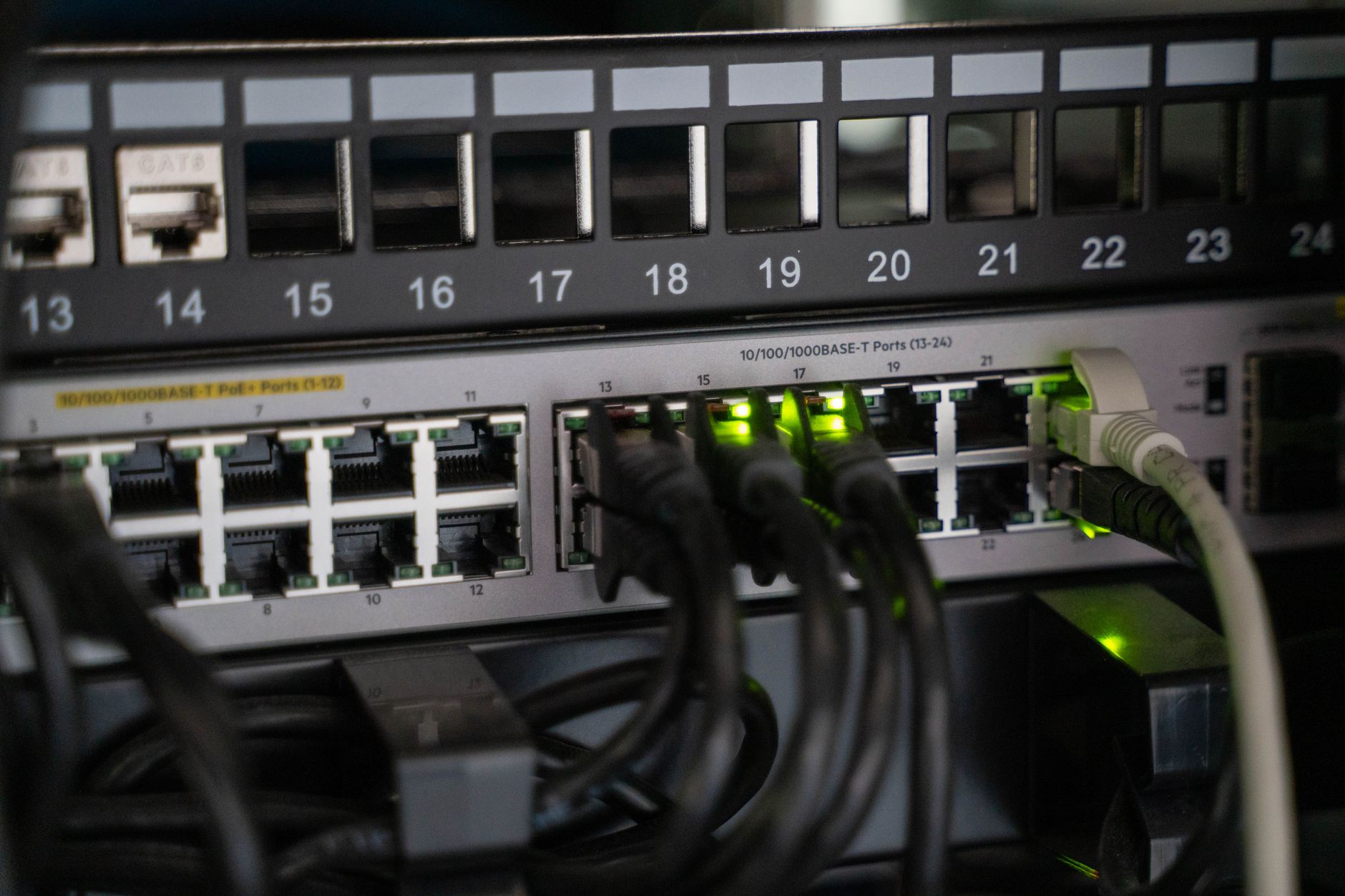
Ethernet cables (Cat5e or Cat6) are inexpensive, and even a 50-foot cable run is straightforward to manage with cable clips.
The combination of good router placement, the right frequency band, and ethernet for stationary devices solves the vast majority of home Wi-Fi complaints without spending a dollar.